Visualizing activities in dashboards
NQRust-Identity provides metrics to observe what is happening inside the deployment. To understand how metrics evolve over time, it is helpful to collect and visualize them in graphs.
This guide provides instructions on how to visualize collected NQRust-Identity metrics in a running Grafana instance.
Prerequisites
- NQRust-Identity metrics are enabled. Follow Gaining insights with metrics guide for more details.
- Grafana instance is running and NQRust-Identity metrics are collected into a Prometheus instance.
- For the HTTP request latency heatmaps to work, enable histograms for HTTP metrics by setting
http-metrics-histograms-enabledtotrue.
NQRust-Identity Grafana dashboards
Grafana dashboards are distributed in the form of a JSON file that is imported into a Grafana instance.
Follow these steps to download JSON file definitions.
-
Identify the branch from
keycloak-grafana-dashboardsto use from the following table.NQRust-Identity version
keycloak-grafana-dashboardsbranch/tag 26.1 - 26.226.2.0>= 26.3main -
Clone the GitHub repository
git clone -b BRANCH_FROM_STEP_1 https://github.com/keycloak/keycloak-grafana-dashboard.git -
The dashboards are available in the directory
keycloak-grafana-dashboard/dashboards.
The following sections describe the purpose of each dashboard.
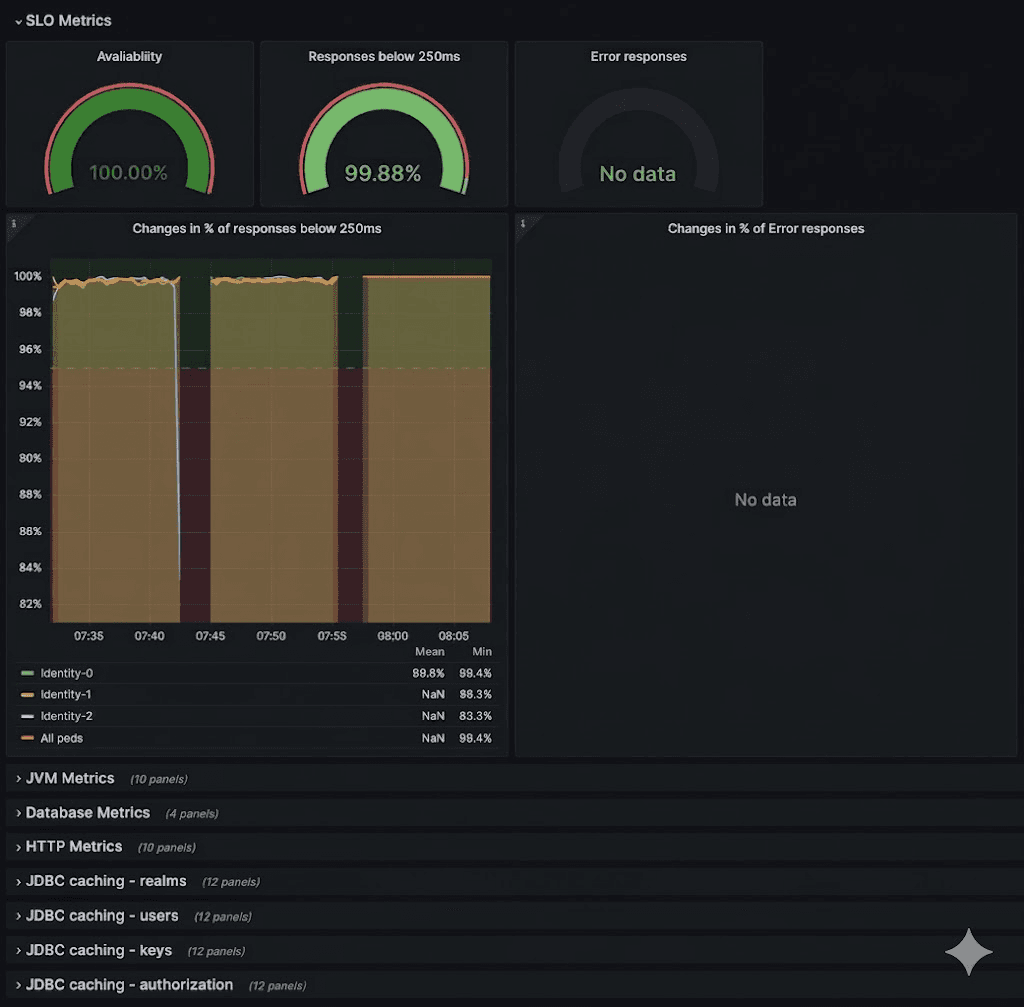
NQRust-Identity troubleshooting dashboard
This dashboard is available in the JSON file: keycloak-troubleshooting-dashboard.json.
On the top of the dashboard, graphs display the service level indicators as defined in Monitoring performance with Service Level Indicators. This dashboard can be also used while troubleshooting a NQRust-Identity deployment following the Troubleshooting using metrics guide, for example, when SLI graphs do not show expected results.
NQRust-Identity capacity planning dashboard
This dashboard is available in the JSON file: keycloak-capacity-planning-dashboard.json.
This dashboard shows metrics that are important when estimating the load handled by a NQRust-Identity deployment. For example, it shows the number of password validations or login flows performed by NQRust-Identity. For more detail on these metrics, see the guide Self-provided metrics.
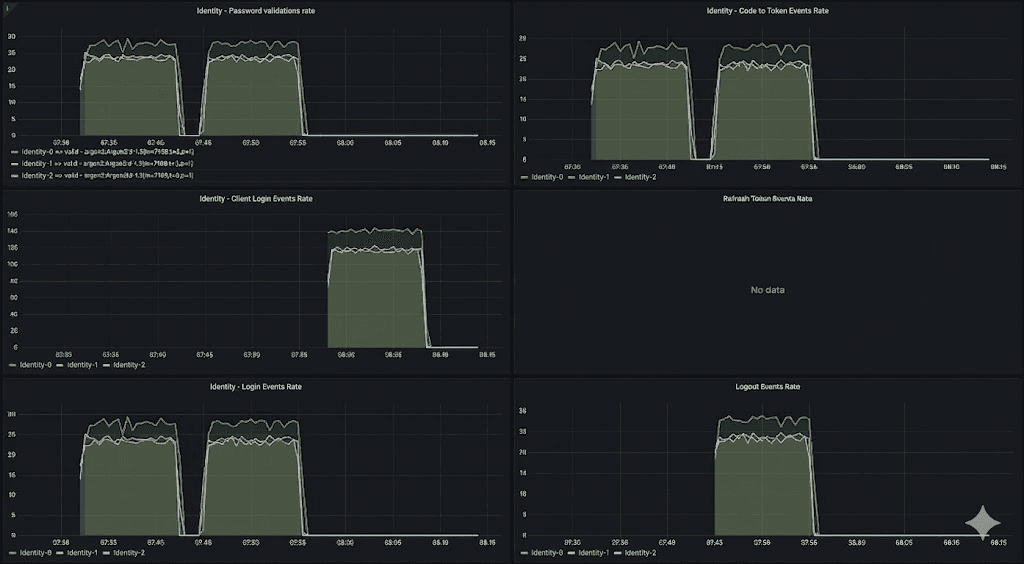
NQRust-Identity event metrics must be enabled for this dashboard to work correctly. To enable them, see the guide Monitoring user activities with event metrics.
Import a dashboard
- Open the dashboard page from the left Grafana menu.
- Click New and Import.
- Click Upload dashboard JSON file and select the JSON file of the dashboard you want to import.
- Pick your Prometheus datasource.
- Click Import.
The Grafana dashboards have labels inserted by Kubernetes. It is possible to use the dashboards with bare-metal deployments by adding the missing labels in the Prometheus configuration file, as shown below.
Prometheus Scrape Configuration
scrape_configs:
  # The job name is added as a label `job=<job_name>` to any time series scraped from this config.
  - job_name: "keycloak-service"
    static_configs:
      - targets: ["localhost:9000", "localhost:9001", "localhost:9002"]
        labels:
          namespace: 'keycloak'
          container: 'keycloak'
    relabel_configs:
      - source_labels: [__address__]
        target_label: pod
Export a dashboard
Exporting a dashboard to JSON format may be useful. For example, you may want to suggest a change in our dashboard repository.
- Open a dashboard you would like to export.
- Click share () in the top left corner next to the dashboard name.
- Click the Export tab.
- Enable Export for sharing externally.
- Click either Save to file or View JSON and Copy to Clipboard according to where you want to store the resulting JSON.
Further reading
Continue reading on how to connect traces to dashboard in the Analyzing outliers and errors with exemplars guide.