Phase 1: Install Identity
In this phase, you configure the service ports and deploy the Identity and Portal containers.
Launch the installer
Run the installer from the directory where the configuration files will be stored:
./nqrust-portal-airgappedThe installer detects airgapped mode and loads the bundled Docker images:
Installer running in offline mode...
Loading bundled images, please wait...
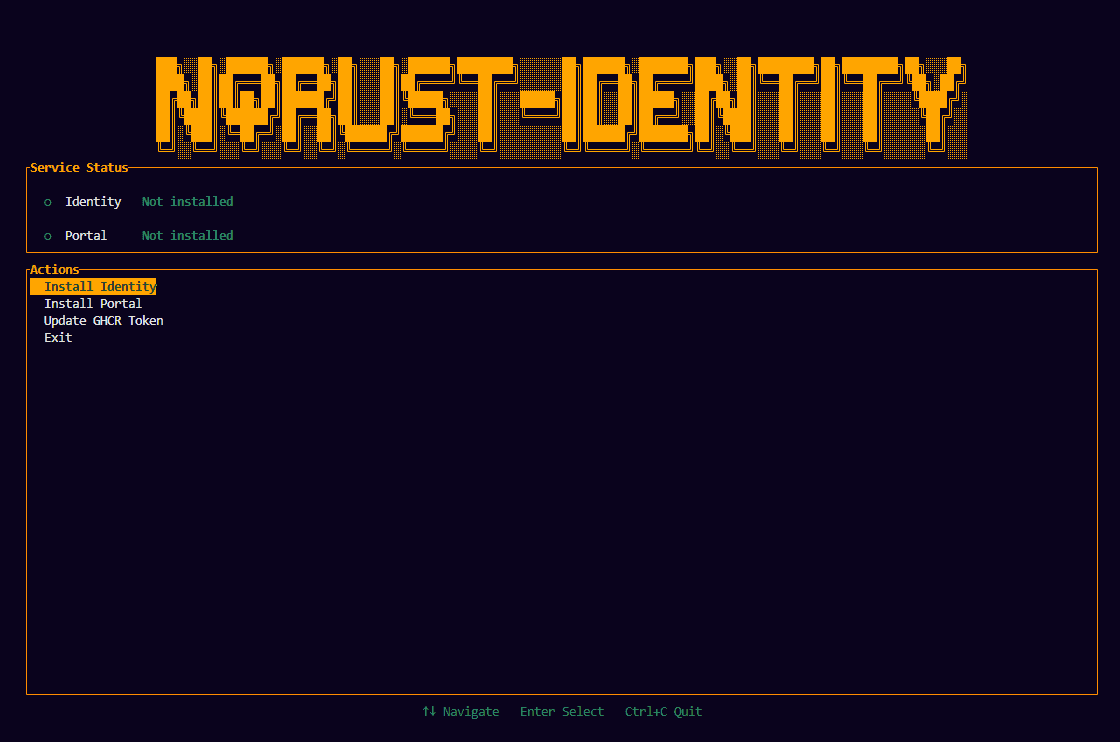
Select "Install Identity"
Use the arrow keys to highlight Install Identity, then press Enter to confirm.
Identity server setting
The server IP address is automatically detected. Access ports are set to default. Only change the port setting if required.
Server port setting
| Field | Description | Example |
|---|---|---|
| Identity Port | External HTTPS port for the Identity Admin Console | 8082 (default) |
| Portal Port | External HTTPS port for the Portal | 8083 (default) |
Navigation
- Tab or Up/Down arrows — move between fields.
- Enter — edit the selected field.
- Esc — stop editing the current field.
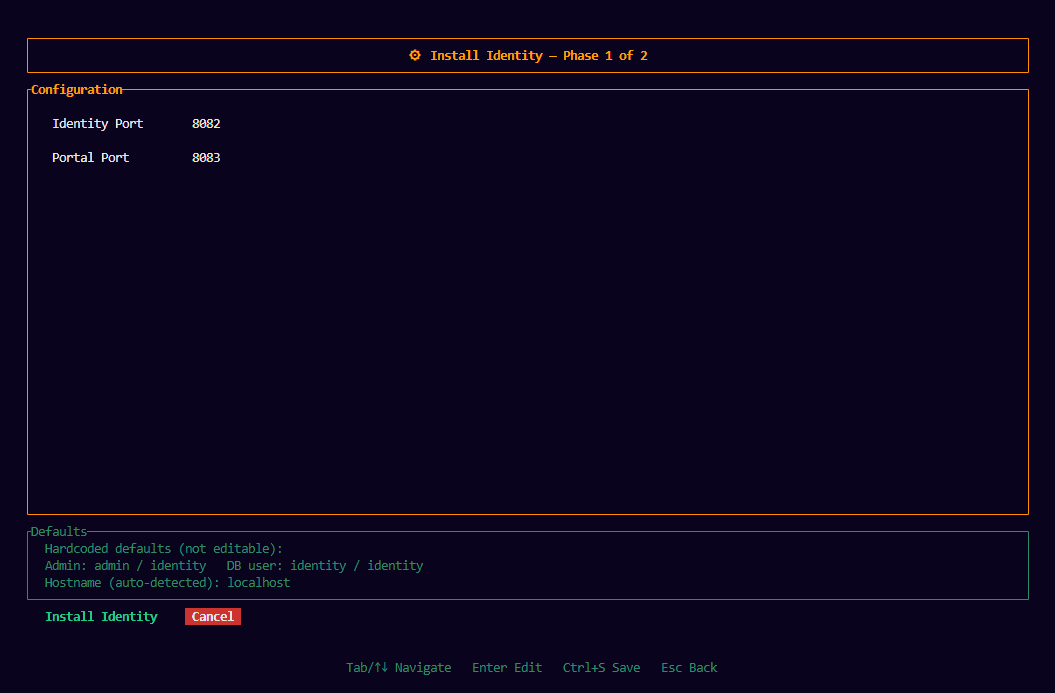
Both ports must be between 1024 and 65535, and must differ from each other. Ensure no other service on the server is using these ports.
Once the port settings are correct, navigate to the Install button and press Enter to start the installation.
Installation progress
The installer generates the configuration files, prepares the Docker Compose bundle, and starts the services. A progress bar and live log output are displayed while each service starts.
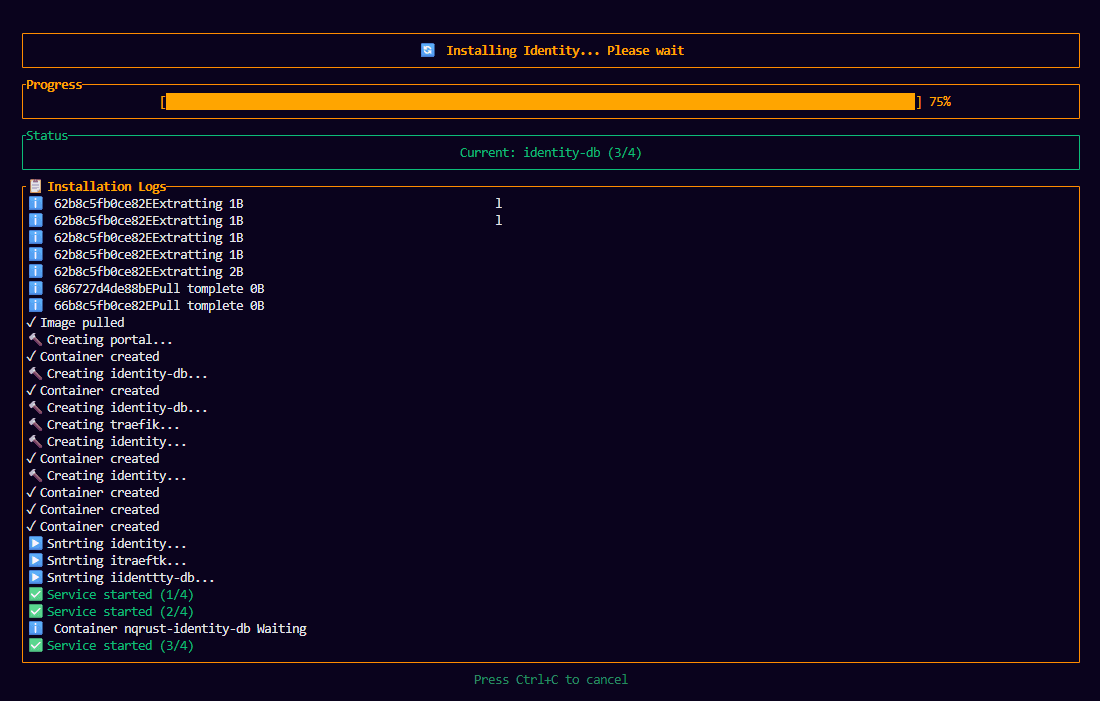
The first startup may take 1–3 minutes while each service initializes its database and runs health checks.
Installation complete
When all services are running, the success screen displays the Identity admin URL.
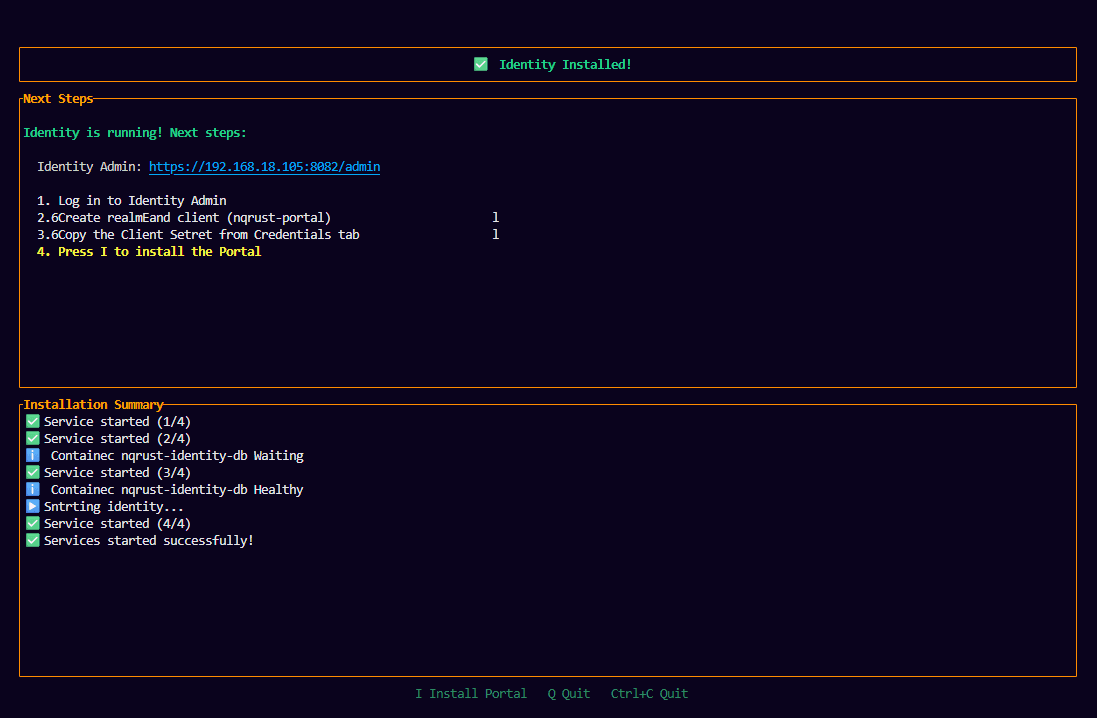
The Portal is not yet fully functional. Complete Phase 2: Configure Portal to link it to an OAuth client in Identity.
Next step
Press i on the success screen to continue to Phase 2, or press q to exit the installer and resume later.
Continue with Phase 2: Configure Portal →